Backing up your system and your files regularly is key to stress-free computing. A single virus infection can destroy everything you have been working on for the last few months, and the consequences can be terrifying. There are several ways to back up your files, and one of them is installing AOMEI Backupper.
Navigating the core features
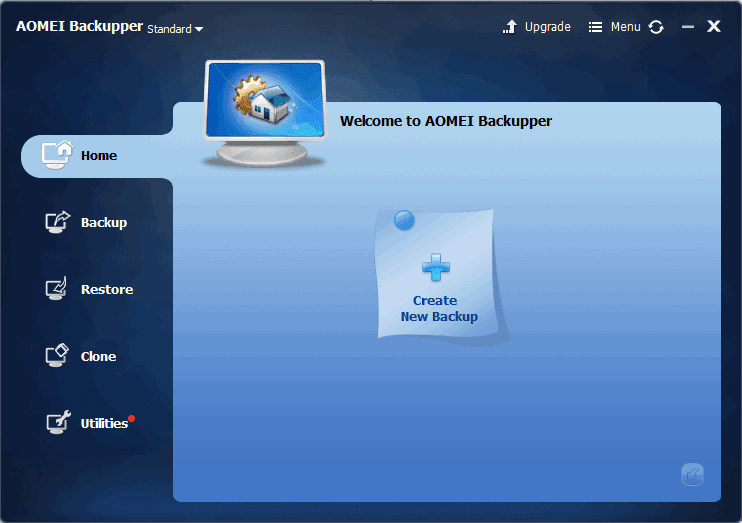
AOMEI Backupper Standard is a free backup software that can be used to back up files, folders, entire drives, and even entire disks and partitions. Things could not be simpler than AOMEI Backupper. The home screen lets you navigate between the Backup, Restore, and Clone tabs, which house all of its core features.
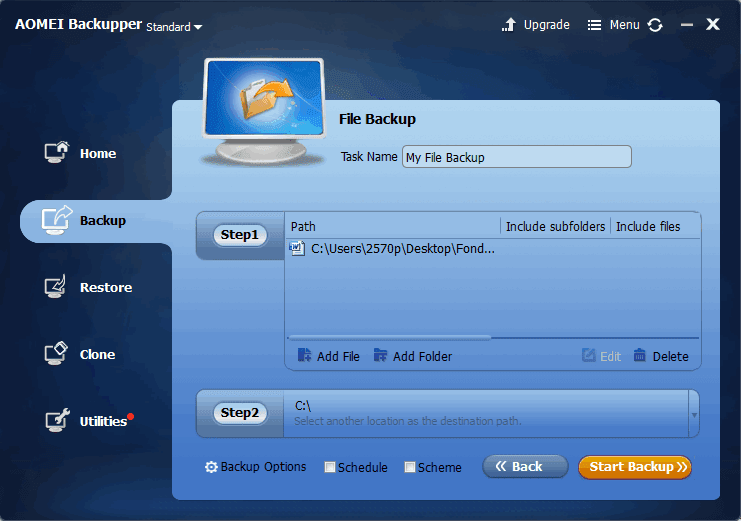
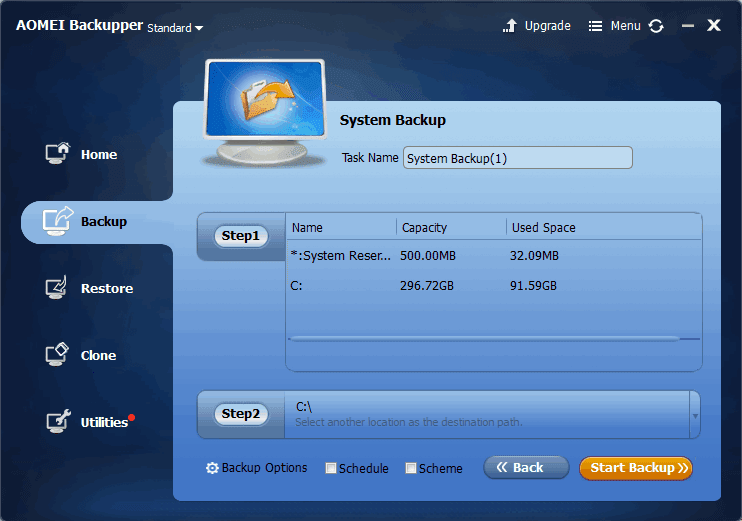
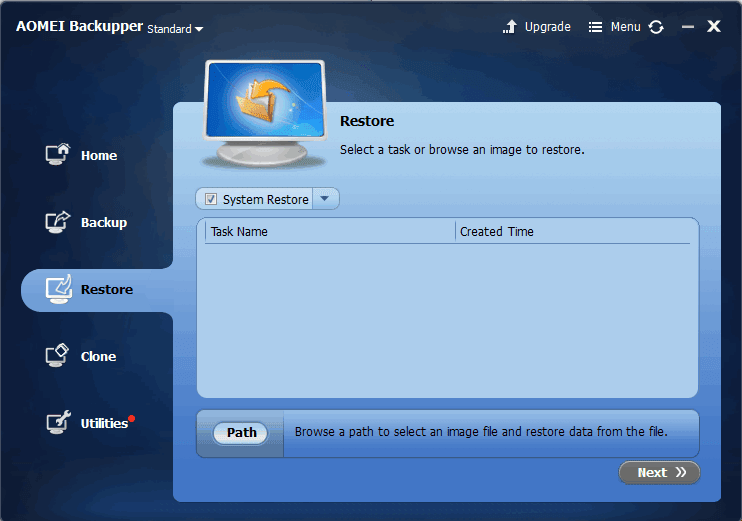
The process is fairly simple: you select the file, folder, or drive to back up and the location where you want to store the backup before hitting the Start button. You can back up the entire Windows system, disks, partitions, or specific files and folders to image files, which can later be used to restore them in case of an emergency.Cloning and extra utilities
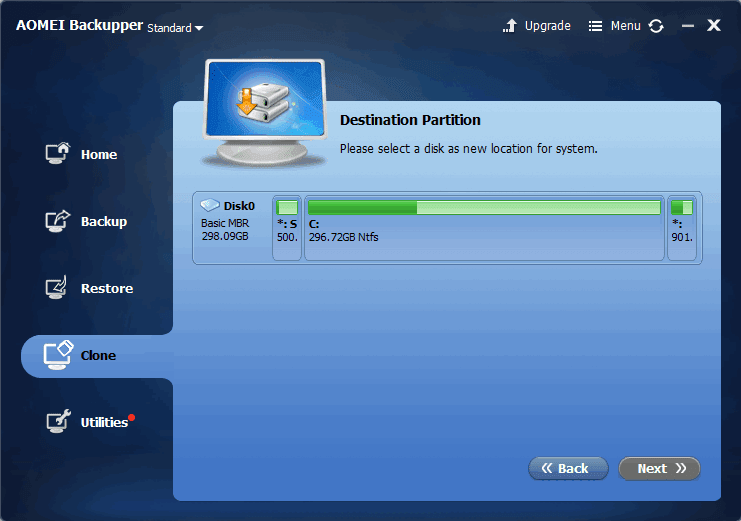
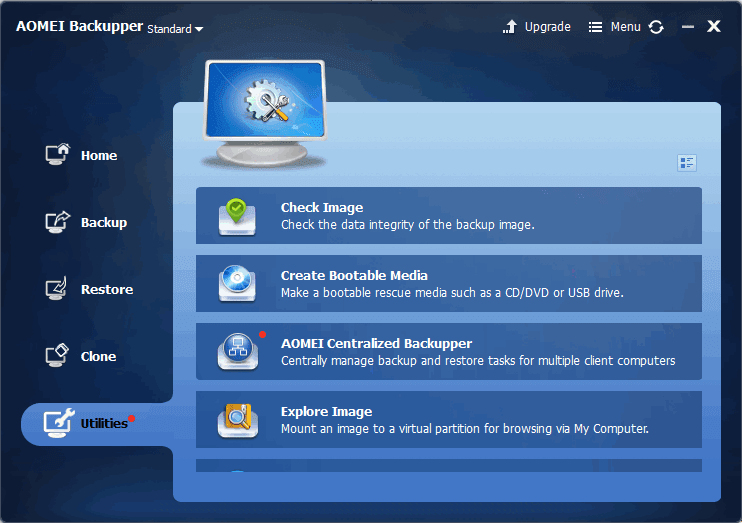
Another useful option is Cloning. Basically, you can create identical copies of a hard drive or a partition, which makes it easy to transfer data from one storage drive to another. Note that cloning an entire Windows system directly to a new drive requires an upgrade to the Professional edition. The Utilities section hosts excellent tools such as Check Image (checking the data integrity of a backup image), Create Bootable Media (creating bootable disks based on Linux or Windows PE), Explore Image (for image mounting), and so on.Advanced backup settings
Backups can be split into smaller fragments to store them on external drives or legacy media like DVDs. You can choose to automatically restart or shut down your computer after an operation is over. There are also various options you can tweak, such as the level of data compression, backup scheduling, and backup encryption (though encryption requires the Professional edition).